
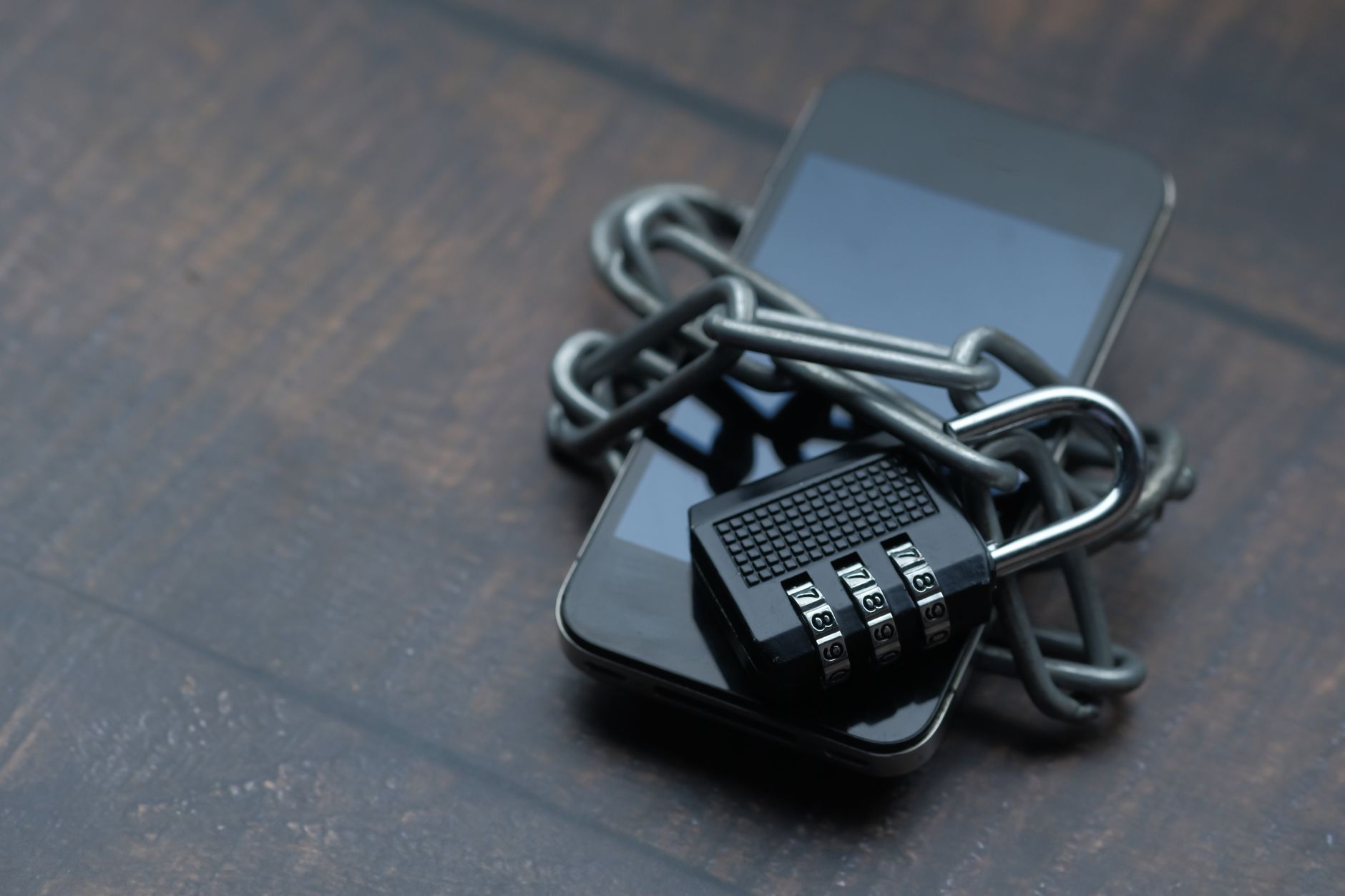
October is Cybersecurity Awareness Month, and this year the Cybersecurity and Infrastructure Security Agency launched it under the theme “Securing the Next 250”. That theme is aimed mostly at the organizations that keep critical services running, but the month has always had a second audience: regular people with a phone in their pocket. The National Cybersecurity Alliance’s companion campaign puts it plainly: don’t make it easy for them. The good news is that you can secure your Android phone in a single afternoon, and most of the steps are one-time settings you never have to think about again.
Here are nine practical ways to secure your Android phone, roughly in order of how much protection you get for the effort.
1. Install Updates (and Check That You Still Get Them)
CISA’s core advice for everyday users, laid out in its Secure Our World program, comes down to four habits: recognize phishing, use strong passwords, turn on multifactor authentication, and update your software. Updates come first here because they fix security flaws you can’t fix yourself.
On most phones, open Settings, go to System or Security & privacy, and look for System update and Google Play system update. Google’s guide to checking and updating your Android version walks through it. While you’re there, note the date of your last security update. If it’s many months old and nothing new is available, your phone may be past its support window, which is worth knowing before you trust it with banking or work accounts.
- Turn on automatic app updates in the Play Store.
- Restart your phone at least once a week; some updates finish installing only on reboot.
2. Use a Real Screen Lock
A swipe-to-unlock screen protects nothing if your phone is lost or stolen. Set a PIN of at least six digits, a password, or a pattern backed by fingerprint or face unlock. Google’s instructions for setting a screen lock cover every option. Then shorten the automatic lock timer to a minute or less so an unattended phone locks itself quickly.
3. Turn On 2-Step Verification for Your Google Account
Your Google account is the master key to your phone: your email, your backups, your saved passwords, and the ability to reset the device. Protect it with 2-Step Verification, so a stolen password alone isn’t enough to get in. Use Google prompts or an authenticator app where you can; text-message codes are better than nothing, but they’re the weakest option.
4. Switch to Passkeys Where You Can
Passkeys replace passwords with your phone’s screen lock. There’s nothing to type, nothing to reuse, and nothing a fake login page can steal. Google lets you sign in with a passkey instead of a password, and a growing number of shopping, banking, and social apps support them too. When a site offers to create a passkey, it’s usually worth saying yes.
For accounts that still need passwords, use a password manager and give every account its own long, unique password. Reused passwords are how one breach turns into five.
5. Run Google’s Security Checkup
Google’s Security Checkup takes about five minutes and flags the things you’ve forgotten: old phones still signed in to your account, third-party apps with access you no longer use, and recovery phone numbers or emails that are out of date. Fix anything it highlights. Up-to-date recovery info is what gets you back in if you’re ever locked out.
6. Keep Play Protect On and Be Picky About Apps
Google Play Protect scans apps for harmful behavior and is on by default. Open the Play Store, tap your profile icon, choose Play Protect, and confirm scanning is enabled. Beyond that, a few habits go a long way:
- Install apps from the Play Store rather than from links in messages or random websites.
- Before installing, check the developer name, the reviews, and when the app was last updated.
- Delete apps you haven’t opened in months. Every installed app is something that can be compromised.
7. Review App Permissions
Apps often ask for more than they need. Open Settings > Security & privacy > Privacy > Permission manager (the exact path varies by phone) and review who can see your location, camera, microphone, contacts, and files. Google’s guide to changing app permissions explains each option. Choose “Only while using the app” for location wherever possible, and revoke anything that doesn’t make sense: a flashlight app has no reason to read your contacts.
8. Learn to Spot Phishing Texts and Emails
Most attacks don’t break into your phone; they trick you into handing something over. Scam texts about undelivered packages, unpaid tolls, locked bank accounts, and “suspicious charges” are everywhere. The FTC’s guide to recognizing and avoiding phishing scams lists the warning signs: urgency, threats, requests to “confirm” personal details, and links that don’t match the real company.
- Never tap links in unexpected messages. Open the company’s app or type its address yourself.
- No legitimate company will ask for your verification code. Anyone who does is trying to take over your account.
- Report scams at ReportFraud.ftc.gov, then delete the message.
9. Make Sure You Can Find (or Erase) a Lost Phone
Set this up before you need it. Android’s Find My Device lets you locate, lock, or erase a lost Android device from any browser. Confirm that it’s turned on, that location is enabled, and that you know your Google password without needing the phone to look it up.
It also helps to keep a separate, secure record of your important accounts and how to recover them, so a lost phone doesn’t mean a lost week. An encrypted organizer such as LegacyVault can keep that inventory in one place.
A 30-Minute Android Security Checklist
- Install pending system and Google Play system updates.
- Set a 6+ digit PIN and a short auto-lock timer.
- Turn on 2-Step Verification for your Google account.
- Create a passkey for your Google account.
- Run Security Checkup and fix what it flags.
- Confirm Play Protect is on and delete unused apps.
- Review location, camera, and microphone permissions.
- Confirm Find My Device is on.
None of these steps require technical skill, and together they close the doors attackers use most. If you’re managing devices for a business or handling sensitive client data, it’s worth talking to an IT security professional about policies beyond what’s covered here.
Frequently Asked Questions
Do I need an antivirus app on Android?
For most people, no. Google Play Protect is built in and scans your apps automatically. Keeping your phone updated, installing apps only from the Play Store, and avoiding phishing links protect you far more than a third-party antivirus app.
How do I know if my Android phone still gets security updates?
Go to Settings and check the security update date under System or Security & privacy. If the date is many months old and checking for updates finds nothing new, your phone has likely reached the end of its support period, and it may be time to plan for a replacement.
Are passkeys safer than passwords?
Yes. A passkey can’t be reused across sites, guessed, or typed into a fake login page, because it only works with the real website or app and requires your phone’s screen lock. That makes it highly resistant to phishing, the most common way accounts get stolen.
Photo by Towfiqu barbhuiya on Pexels
Leave a Reply